Seating chart
Wedding seating chart with a QR code for guests
Guests scan a QR code at the entrance and find their table in a few seconds — no crowd at the paper seating chart and no "where am I sitting?" questions. You plan the seating for free, and the QR code for guests comes with the Wedding plan — one payment, no subscription.
Wedding planPLN 99
Founder price until 31.03.2027
The seating planner itself is free in the Start plan.
Compare plans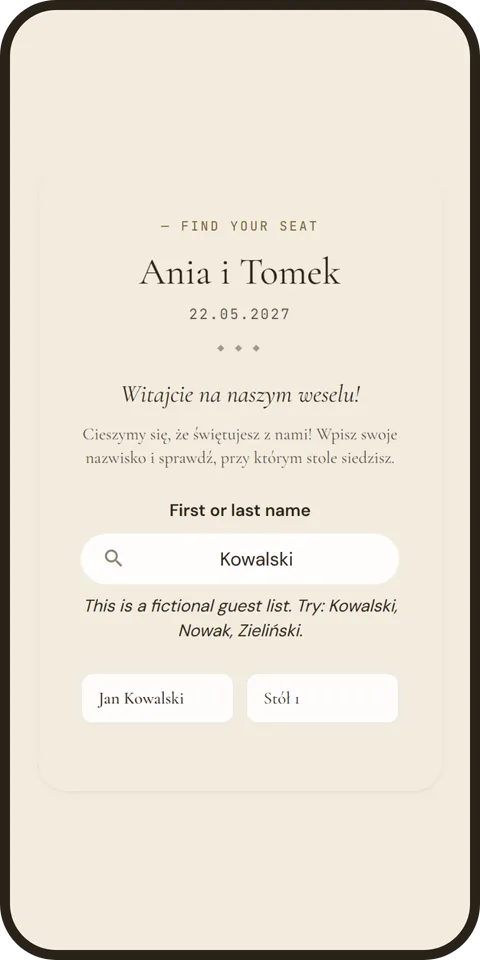
How it works
Arrange tables and seat guests
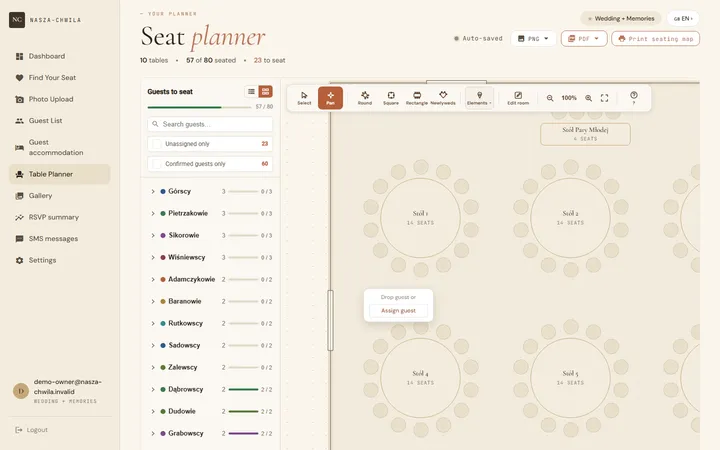
In the seating planner you place the tables and drag guests onto them from your list.
Print the QR code
You choose a template: a menu, a poster, a sticker or a card, and download a print-ready file.
Guests scan and sit down
A guest scans the code, types their first or last name and sees their table number.
How do guests find their table at the wedding?
A poster with a QR code stands at the entrance, and cards with the same code lie on the tables. A guest scans it with the phone camera and the wedding page opens in the browser. They type their first or last name and the page shows their table number at once. Nobody installs an app or creates an account, and there is no queue at the seating board.
How do you seat wedding guests in the seating planner?
You build the seating plan in your panel: add tables, set the number of seats and drag guests from your list onto the chairs. Families stay together on the screen, so it is easy to seat close relatives side by side. The seating planner is free in the Start plan, and the Wedding plan adds the QR code page for guests.
Where should you place the seating chart QR code?
You can download the QR code as PNG, SVG and PDF. There are also print-ready templates:
- an A6 menu for every table,
- an A3 poster at the entrance,
- stickers, for example for place cards,
- an A5 card for a frame or a stand.
How do you match the page to your wedding style?
The page guests see has several themes: paper, walnut, cream and floral. With the Wedding plan you can also set your own background, such as an engagement photo. A live preview shows how the page looks on a guest's phone before you publish it.
What the couple gets
Seating your wedding guests
You place the tables and seat guests in the seating planner. This part is free in the Start plan.
Table finder for guests
A guest types their name and the app shows their table number and seat. No more crowd at the entrance.
A QR code for the seating chart
Generated automatically as PNG, SVG and PDF, ready to print on invitations, place cards or a welcome board.
Print-ready templates
An A6 menu, an A3 poster, stickers and an A5 card — all in one consistent wedding design.
Your own look
Elegant themes (paper, walnut, cream, floral) and card styles that match your wedding, with a live preview before you publish.
A public page with no sign-in
Guests do not create an account — they just scan the code and find their seat at the wedding.
Frequently asked questions
Do guests need to install an app or create an account?
No. A guest scans the QR code with the phone camera and the page opens in the browser. They type their first or last name and see their table at once.
What happens if I change the seating after printing the QR code?
Nothing bad. The QR code leads to a page that always shows the current seating plan, so you do not need to print it again.
What if a guest does not have a phone with them?
Put a seating board or a printed floor plan next to the code. The QR code shortens the queue, and a guest without a phone still finds their seat.
Which formats can I download the QR code in?
PNG, SVG and PDF. PNG is enough for invitations, and SVG and PDF stay sharp on a large print. You can also download a ready template: an A6 menu, an A3 poster, a sticker or an A5 card.